Portable Digital Signage can bring a message to a trade-show aisle, a retail entrance, or a temporary service desk. Yet mobility alone does not make a display effective. A unit that looks sleek in a catalog may feel awkward after an hour of moving it, or become hard to read beside a bright window. Small details matter.
Digital signage analyst Dave Haynes, founder of the industry publication Sixteen:Nine, has written extensively about screens and their real-world settings. A practical paraphrase of that perspective is: “A display works best when its content and placement suit the people seeing it.” That is not a direct quotation, but it captures a useful principle. The following seven tips examine how to choose Portable Digital Signage with the setting in mind: screen size and visibility, battery life, weight and transport, setup, connectivity, content management, and durability. Check each against the places the display will actually travel. A bright lobby and a crowded event floor pose different challenges. So does a long day without an outlet. Ask vendors for clear specifications, test the controls, and inspect the case and stand before buying. Not glamorous, perhaps. Still, one overlooked connector or a difficult-to-read screen can undermine an otherwise sensible choice. The right option is rarely the one with the longest feature list; it is the one your team can set up, move, and use reliably.
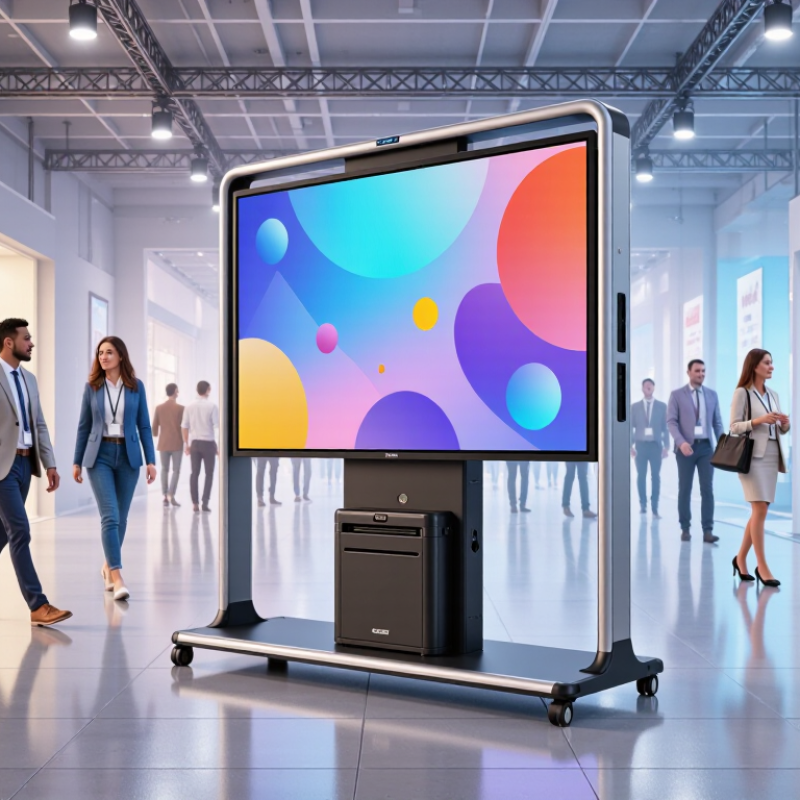
Before choosing a portable digital sign, define its job in one plain sentence: guide visitors, announce changing schedules, or explain a product. The message changes the screen size, brightness, and placement. A hallway directory needs readable text from several steps away. A booth display may need vivid images and quick updates. The Outdoor Advertising Association of America reported that digital formats represented 34% of U.S. out-of-home advertising revenue in 2023. That signals growing use, but it does not mean every setting needs a large screen. Small details matter.
Then picture the audience and their pace. Commuters passing a station may only glance for seconds; visitors waiting in a lobby can read more. Keep key wording large, with strong contrast against bright windows or overhead lights. I still find viewing distance easy to misjudge. Test the content from the farthest likely spot, not just beside the stand. Match the installation to the site: check floor space, nearby power, glare, foot traffic, and whether staff can move the unit safely. For a temporary event, wheels and a stable base may help; for a crowded entrance, they can become a hazard. Check the route, too. A screen that blocks a doorway or disappears behind a queue is poorly placed, even if its specifications look excellent.
A portable display should be sized for the farthest useful viewing point, not just the nearest person. AVIXA’s ANSI/INFOCOMM V202.01 standard links image size to viewing distance and content legibility. Measure the actual space: a visitor standing four metres away needs larger text than someone reading from arm’s length. Distance changes everything. If the screen will show schedules or detailed menus, test the smallest text from the back of the queue.
Resolution matters when viewers stand close. A large screen with coarse pixels can make lettering look jagged; for close viewing, compare pixel pitch as well as the pixel count. Brightness needs a real-world check, too. For indoor use, around 400–700 cd/m² can be a practical starting range; near bright windows, test higher output under the actual lighting. CIE 150:2017 sets guidance for obtrusive light by environmental zone, reminding operators that maximum brightness is not always the right setting.
Take the unit outside before deciding. Sunlight can wash out an image that looked crisp indoors, while a shaded lobby may not need high output. Test it live. Check legibility at the intended distance, then lower brightness until text remains clear without glare. I would not trust a specification sheet alone; viewing angle, reflections, and even a pale wall behind the screen can change the result.
Portability starts with the route, not the product weight. Measure doorways, lift capacity, and the distance from vehicle to display. A wheeled stand may roll smoothly indoors but struggle over a cable ramp or rough pavement. Check screen size, packed dimensions, handle placement, and whether one person can safely assemble the unit. Small details matter.
Power needs deserve the same scrutiny. Check the display’s wattage at your intended brightness, then compare it with the battery’s usable watt-hours; real runtime is usually lower than the simple capacity calculation suggests. The IEA’s Electricity 2024 report recorded a 2.2% rise in global electricity demand in 2023. That broad figure is not a forecast for signage, but it reinforces the value of measuring consumption rather than guessing. Test the screen, media player, and wireless equipment together. A battery that powers the screen alone may fall short.
Setup can make a portable display inconvenient fast. Look for tool-free assembly, locking wheels, accessible ports, and a stable base on the surfaces you actually use. Rehearse setup with the real cables and content player; a tidy showroom demonstration can hide awkward connectors. One overlooked cable can delay an event. Also confirm charging time, spare-battery handling, and whether the unit fits through the storage-room door. A quick checklist helps, though it may miss one annoying detail.
| Tip | What to Assess | Practical Check | Why It Matters |
|---|---|---|---|
| 1. Match the display size to the route | Screen dimensions, assembled footprint, and door or elevator clearances. | Measure the narrowest doorway and storage space; compare them with the display’s packed and assembled dimensions. | A unit that fits the viewing area may still be difficult to transport or store. |
| 2. Check total transport weight | Weight of the display, stand, battery, and carrying case—not just the screen. | Confirm the full kit’s weight and whether one person can safely move it; check stair and vehicle-loading needs. | Accessories can add significant weight and affect how easily the system can be relocated. |
| 3. Choose a suitable power option | Mains power, a built-in battery, or a compatible external battery. | Check the display’s power input and rated consumption, then confirm the battery or outlet can support it. | Power compatibility determines where the sign can operate and what equipment must travel with it. |
| 4. Verify battery runtime under real conditions | Manufacturer-stated runtime, brightness settings, connected devices, and operating conditions. | Ask how runtime was measured and test a full event-length session at the brightness and content settings you expect to use. | Actual runtime varies with screen brightness, content, temperature, and peripheral power draw. |
| 5. Look for a simple, stable setup | Stand or cart assembly, locking mechanisms, leveling, cable connections, and setup instructions. | Request a demonstration or trial setup; confirm the display can be assembled securely without specialist tools. | A quick, repeatable setup reduces deployment time and helps prevent unstable installations. |
| 6. Confirm content and connectivity options | Supported media formats, local playback, network access, and available connection ports. | Test the intended content and confirm whether playback works offline if Wi-Fi or mobile service is unavailable. | Reliable playback and a suitable connection method help avoid interruptions at temporary locations. |
| 7. Plan for viewing conditions and safety | Ambient light, viewing distance, indoor or outdoor use, ventilation, and placement stability. | Check the specified operating environment and screen brightness; secure the stand and route cables away from walkways. | The right placement improves readability and reduces risks from tipping, heat, or trip hazards. |
Portable digital signage depends on more than a bright screen. Check how it connects where it will actually operate. A display may work smoothly in an office but struggle in a busy lobby with weak Wi-Fi or a sign-in page. Test it on site. If the connection drops, confirm that scheduled content stays available offline and updates once service returns. For outdoor events or temporary locations, compare cellular and wired options, including their setup needs and ongoing costs.
Content management should be simple enough for staff to use correctly. Look for scheduling, remote updates, user permissions, and a clear preview before publishing. Test a real campaign: upload a short video, set its start time, then change one detail from another device. Small checks catch problems such as cropped text or the wrong screen orientation. I would not assume every system makes these tasks intuitive; confusing menus can lead to stale content.
Compatibility needs practical testing, not just a list of supported formats. Check that the display accepts your file types, resolution, and aspect ratio, and that its software works with your existing content tools. Confirm power requirements, mounting points, and whether cables fit the planned setup. Leave time for a full rehearsal. One overlooked adapter can delay installation, and specifications do not always reflect the quirks of a real venue.
A portable digital sign may look sturdy in a showroom, but daily handling tells a different story. Check the frame, screen cover, handles, and wheel locks for loose parts or sharp edges. Ask how the unit performs during repeated transport and whether its stated weather protection suits your actual setting. A rainy loading area is not the same as full outdoor exposure. Small details matter.
Compare the total cost, not just the purchase price. Include delivery, setup, replacement batteries, protective cases, and likely repairs. Battery life can change with screen brightness and operating hours, so request figures based on your planned schedule. A cheaper unit may need more frequent charging. That adds friction. It is easy to overlook.
Read the warranty before committing. Check its duration, covered components, and exclusions for battery wear, accidental damage, or transport. Confirm who handles repairs and whether replacement parts are available. Technical support should offer clear contact options, realistic response times, and practical help with setup or software issues. Ask what happens if a display fails before an event. Get the answer in writing. One useful question often reveals more than a polished brochure. Also consider whether staff can perform basic checks without specialist tools; I might be underestimating how often that saves time.
Define its job in one sentence, such as guiding visitors or showing changing schedules. Then match screen size and placement to that task.
Use large text and strong contrast. Test it from the farthest viewing spot, not just beside the stand. Distance is easy to misjudge.
Measure floor space and check power, glare, foot traffic, and doorways. A screen that blocks a queue can be poorly placed.
Measure doorways, lifts, and the route from the vehicle. Check packed dimensions and whether one person can assemble it safely. Wheels help, but rough pavement may defeat them.
Compare battery capacity in usable watt-hours with power use at your chosen brightness. Test the screen, player, and wireless equipment together. Real runtime is often lower.
Rehearse with the real cables and content player. Check charging time, locking wheels, and storage access. One cable can cause a delay.
Test the display where it will operate. If Wi-Fi drops, confirm scheduled content remains available offline and updates when service returns.
Upload a short video, schedule it, and preview it on the display. Check file type, resolution, aspect ratio, and orientation. Specifications can miss venue quirks.
Choosing Portable Digital Signage starts with understanding where the display will be used, what it needs to communicate, and who will view it. Consider the installation setting and viewing distance when selecting screen size, resolution, and brightness, so content remains clear in the expected lighting conditions. A display suited to a busy event may have different requirements from one used in a reception area or retail space.
Next, assess how easily the unit can be moved and set up, including its power options and any installation requirements. Check that its connectivity, content management tools, and compatibility fit your existing devices and workflow. Finally, compare durability, overall costs, warranty coverage, and access to technical support. Considering these factors together can help you choose a practical, reliable display that suits your needs and remains manageable over time.

Best Display